






How do I exclude software, a website or a script from Avast scans in Avast Business?
This option is not generally recommended, but it may be useful to exclude certain files or websites from a scan in order to speed up the scan or avoid false positives. To configure exclusions in the Avast Business console > Go to Policies > Click on the policy you are using for this network > Exclusions.
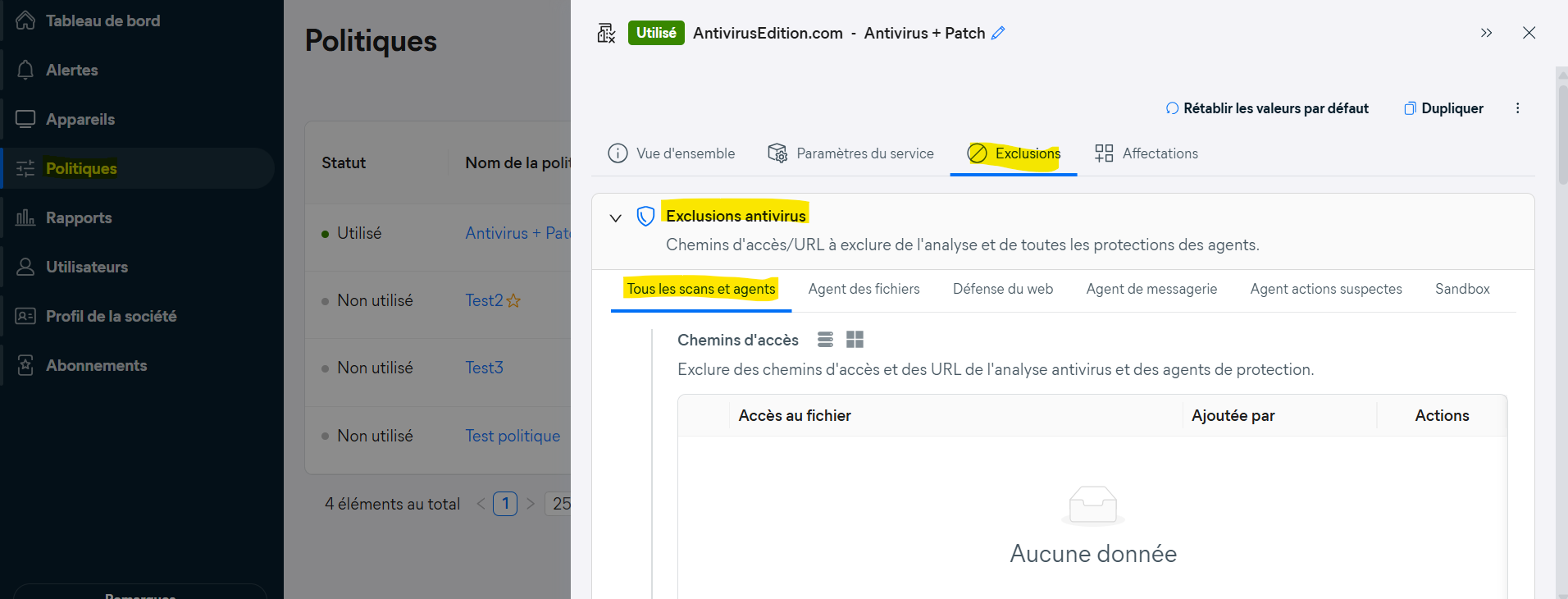
Select the appropriate tab to specify which actions an exclusion applies to. Click in the text box to enter the details
File paths: Enter the path to the file or folder in the text box, or click ‘Browse…’ and tick the relevant folder.
URLs: Enter the website address.
Deepscreen: Enter the file path in the text box or click ‘Browse…’ and select a file (.exe).
Enhanced Mode: Enter the file path in the text box or click ‘Browse…’ and select a file (.exe).
Then click on Add.
File and folder paths may contain special characters ? And *. The asterisk stands for zero or more characters, and the question mark stands for a single character. For example:
To exclude all HTML files, enter *.htm* in the text box.
To exclude a folder and its subfolders, add * at the end of the folder name, for example C:example*
To exclude certain files with specific names from one of your hard drives, add ?: in front of the site, for example ?:example.exe
To block all subdomains and domains of a specific website, add *. at the beginning and /* at the end of the website domain, for example *.example.com/*